
How to prepare Form 990-N: A step-by-step walkthrough for your PTA

| Time to Read |
|
| What You'll Learn |
|
| Next Steps |
|
Form 990-N, also known as the IRS e-Postcard, is the annual form required for most PTAs with smaller budgets. The form itself is short and fairly to the point, but it still needs accurate information pulled directly from your PTA's records. And missing this filing can put your tax-exempt status at risk.
This step-by-step walkthrough helps you confirm whether your PTA qualifies for the e-Postcard and shows you exactly how to complete Form 990-N. You'll also learn how to save your filing confirmation and document the submission so it's easy to reference in future years.
With complete financial records and a straightforward process, filing Form 990-N becomes a simple annual task, not a stressful one.
Want to make all your PTA tax prep easier? Try Beekeeper's accounting platform just for school groups.

Step 1: Confirm your PTA qualifies to file Form 990-N
Before you start gathering information or logging into the IRS system, you first need to confirm that your PTA is actually eligible to file Form 990-N. Filing the wrong form can create problems down the road.
Most PTAs qualify for the e-Postcard if their gross receipts are typically $50,000 or less.
What "gross receipts" means
Gross receipts are your PTA's total income before expenses are subtracted. This includes cash, check, and online payments from sources like:
- Fundraising revenue
- Membership dues
- Corporate matching and sponsorships
- Event ticket sales
- ... and more
Do not subtract expenses, processing fees, chargebacks, or refunds when determining eligibility.
How to confirm eligibility
To confirm your PTA qualifies:
- Review your completed annual financial report
- Check the total income figure for the year
- Confirm it is $50,000 or less.
If your PTA's income is close to the threshold, you need to use finalized, reconciled records (not estimates) to make this determination.
The IRS uses gross receipts to determine which version of the Form 990 series your PTA needs to file. If your PTA exceeds the $50,000 threshold, you'll need to file Form 990-EZ or Form 990 instead.

Step 2: Gather the information you'll need before filing
Before you log into the IRS e-Postcard system, take a few minutes to gather the necessary information.
Form 990-N is short, but it's not forgiving. Having everything ready upfront prevents errors and delays.
- Legal organization name: Use the exact name the PTA registered with the IRS. This is often longer than the name you use publicly.
- Employer Identification Number (EIN): Enter it exactly as issued. Double (and triple) check the digits to avoid rejections.
- Fiscal year start and end dates: These should match your PTA's bylaws and the dates logged on your annual financial report.
- Principal officer's name and address: This is usually the current PTA president or treasurer.
- Gross receipts for the year: This is your PTA's total income for the fiscal year before expenses. This number should come from your completed annual financial report.
- Confirmation that the PTA is still active
The IRS requires that this information match what it already has on file. Using totals and details from your completed annual financial report helps ensure everything is accurate and consistent.

Step 3: Access the IRS Form 990-N electronic filing system
Form 990-N needs to be filed electronically through the IRS e-Postcard system. Paper filings are not accepted.
Before logging in, it's important to remember:
- You cannot file until after your fiscal year has ended, but you must file it no later than the 15th day of the fifth month after the end of your tax year. For fiscal years that end June 30th, for example, the form is due November 15th. If your PTA's fiscal year matches the calendar year, then the due-by date is May 15th of the following year.
- The IRS recommends filing from a desktop or laptop, not a mobile device. This isn't due to potential security concerns; it's because the system isn't optimized for phones or tablets, so it may not function correctly, which could lead to errors.
- Text fields on Form 990-N have strict character limits and formatting rules, due to technical limitations in the e-filing system. These rules also help standardize data so the IRS can process and store it efficiently.
To begin, go to the IRS Form 990-N filing page.
How to log into the IRS e-Postcard system
- Navigate to the Form 990-N page using the link above. It will take you to the IRS's Annual Electronic Filing Requirement for Small Exempt Organizations (Form 990-N) page.
- After reviewing the info on the page, scroll down to find the button that says "Submit Form 990-N (e-Postcard)" and click it.
- Choose a sign-in method. The IRS offers three login options:
- Sign in with an existing IRS username (if you already have one)
- Sign in with Login.gov (you'll create an account if you don't have one)
- Sign in with ID.me (create an account if you don't have one)
- Complete authentication if prompted. Both Login.gov and ID.me require multi-factor authentication (MFA). Follow the prompts to verify your identity before continuing.
Once you're signed in, you can create a new Form 990-N submission and begin entering your PTA's information.
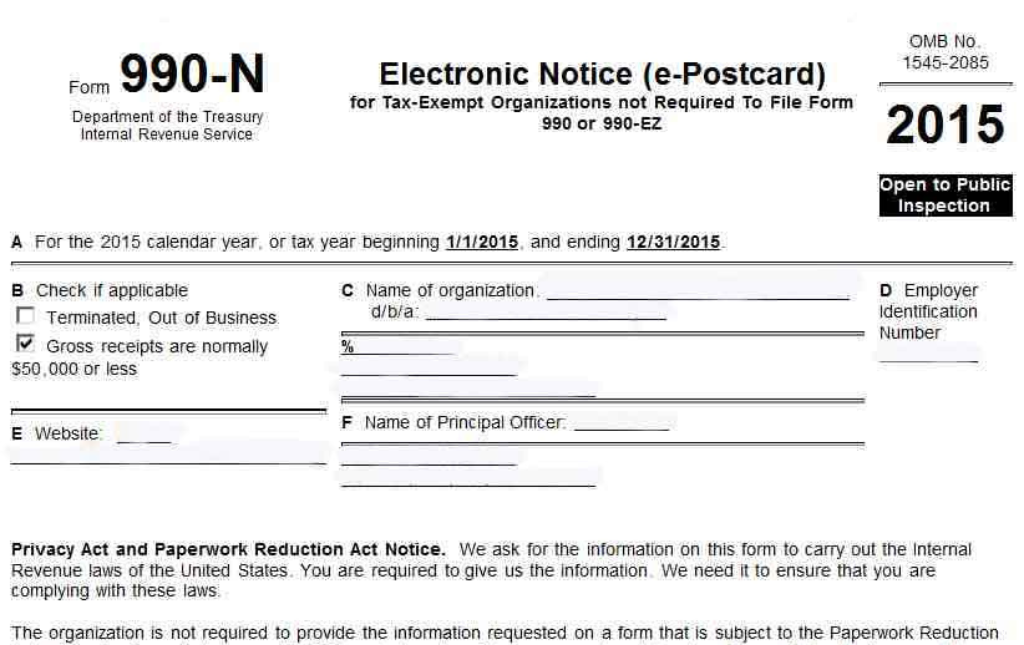
Step 4: Complete the Form 990-N sections, one by one
The e-Postcard itself is short, but ensuring you file it correctly is important for your PTA. Each section must be completed carefully.
Here's how to work through it in order so nothing gets missed:
Box A - Tax year
Enter your PTA's tax year beginning and ending dates
- Use the same fiscal year start and end dates that you confirmed earlier
- Make sure you're filing after your tax year has ended
Box B - Check if applicable
This section is just a quick status check.
- Terminated/Out of Business: Only check this if your PTA has officially closed and will no longer operate.
- Gross receipts are normally $50,000 or less: This is the checkbox that confirms your PTA qualifies to file the 990-N instead of 990-EZ or 990. Make sure it's checked off.
Box C - Name of organization & address (and d/b/a if applicable)
- Enter your PTA's legal name exactly as registered with the IRS. Don't shorten it or use a casual name if the legal name is longer.
- If your PTA uses a different public-facing name (i.e., Lincoln PTA as opposed to Lincoln Parent-Teacher Association), you'll enter it in the d/b/a (doing business as) section, under the line for the legal name.
- On the next few lines, you'll enter your PTA's mailing address. Use the official PTA address used for IRS records. This is often a PO Box.
Box D - Employer Identification Number (EIN)
Enter the PTA's EIN exactly.
- Double and triple-check every digit
- Don't use a school district EIN or an individual's SSN. Your EIN will be nine digits, and formatted like this: XX-XXXXXXX
Box E - Website
If your PTA has a website, enter it here.
- If you don't have one, just leave it blank. Don't invent a URL, and don't type in the school's web address
Box F - Name of Principal Officer
Enter the name of your PTA's principal officer (usually the president or treasurer) and their address.
- Use the current officer responsible for the organization's filing/compliance
- Ensure that the name and address are complete and accurate. This is the IRS's point of contact.
Once the e-Postcard is complete, give it another quick once-over to ensure accuracy, then hit submit and save your confirmation immediately. If you exit the page without saving or printing the confirmation page, you will be unable to retrieve it later.
In some cases, the filing status may initially display as Pending. Simply refresh the page, and it should automatically update to Accepted or Rejected.

Step 5: Save your filing and update your compliance records
After confirming that the IRS has accepted your filing, take a few moments to document it properly. This final step protects your PTA long after filing day.
Your IRS confirmation is part of your PTA's official compliance history and should be saved alongside other such documents, like:
- Your annual financial report
- Prior-year IRS filings
- Audit or finance committee documentation
Keeping these records together makes future filings, audits, and treasurer transitions so much easier, and it prevents the need to recreate information years later (which is not only a pain, but can be extremely difficult if records aren't kept, especially if your PTA has gone through multiple treasurers or principal officers).
Remember, the IRS automatically revokes tax-exempt status for organizations that fail to file a required return for three consecutive years. So documenting each submission matters.
Final thoughts from our tax team
Form 990-N may be a short filing, but it plays an important role in keeping your PTA in good standing with the IRS. With accurate records and information, and a straightforward filing process, completing the e-Postcard becomes a quick, manageable task each year.
Beekeeper is an accounting platform for school groups that can help by:
- Organizing records: automating bank imports and organizing expense reimbursements
- Tracking budgets: monitoring spending and revenue throughout the year
- Reconciling accounts: categorizing transactions to keep your books ready for tax season
By saving your confirmation and documenting the filing alongside your financial records, you protect your PTA's tax-exempt status and make future transitions easier for the volunteers who follow you. Done consistently and with the right tools, Form 990-N becomes an easy task at tax time instead of a source of stress.
Cameron Martel is FutureFunds' chief marketing officer. He focuses on helping FutureFunders get more from their fundraising, helping their online stores reach more customers, and generally empowering the people that are building the next generation of students.